- AWS
- CDK
- MongoDB
MongoDB Atlas with AWS CDK and VPC Peering
Deploying MongoDB Atlas clusters with VPC peering using AWS CDK in TypeScript. Peering keeps traffic on a private connection and costs less than MongoDB VPC endpoints.
Luan Phan · · 10 min read
If your app on AWS uses MongoDB Atlas, you can connect the two privately through MongoDB’s VPC endpoints or through VPC peering, and peering costs a lot less. This tutorial builds an AWS CDK stack in TypeScript that deploys an Atlas cluster and peers it with your existing VPC.
Why VPC peering instead of VPC endpoints
- MongoDB VPC endpoints can cost $45-90+ per month, depending on usage.
- VPC peering typically costs $0.01 per GB of data transferred across the peering connection.
Direct peering often gives better latency and throughput too, and there are no endpoints to manage. For most applications it’s the cheaper option, and traffic still stays on a private network.
Prerequisites
You’ll need:
- A MongoDB Atlas account. Signing up through AWS Marketplace gives you integrated billing.
- A MongoDB Atlas programmatic API key (PAK) with the Organization Project Creator permission. See Create an API key.
- An AWS account, with the AWS CLI configured and permission to deploy.
- The Atlas PAK stored in AWS Secrets Manager.
- Node.js 18 or later, for AWS CDK.
- These third-party resources activated in your target AWS region through the CloudFormation Registry:
MongoDB::Atlas::ProjectMongoDB::Atlas::ClusterMongoDB::Atlas::DatabaseUserMongoDB::Atlas::ProjectIpAccessListMongoDB::Atlas::NetworkContainerMongoDB::Atlas::NetworkPeering
Activate these resources in every AWS region you deploy to. It’s a one-time step per region.
Step 1: Set up the project
Install AWS CDK
npm install -g aws-cdkBootstrap your AWS environment
cdk bootstrap aws://ACCOUNT_NUMBER/REGIONReplace ACCOUNT_NUMBER with your AWS account number and REGION with your target region.
Initialize a CDK project
mkdir mongodb-atlas-vpc-peering
cd mongodb-atlas-vpc-peering
cdk init app --language typescript
Install the dependencies
npm install awscdk-resources-mongodbatlas
npm install @types/node
Step 2: The architecture
The construct creates this infrastructure:
┌─────────────────────┐    VPC Peering    ┌─────────────────────┐
│     AWS VPC         │◄─────────────────►│   MongoDB Atlas     │
│                     │                   │                     │
│ ┌─────────────────┐ │                   │ ┌─────────────────┐ │
│ │ Private Subnet  │ │                   │ │    Cluster      │ │
│ │                 │ │                   │ │   (M10+)        │ │
│ │ ┌─────────────┐ │ │                   │ │                 │ │
│ │ │Lambda Function│ │ │                   │ └─────────────────┘ │
│ │ └─────────────┘ │ │                   │                     │
│ └─────────────────┘ │                   └─────────────────────┘
│                     │
└─────────────────────┘
It’s made of these resources:
- A MongoDB Atlas project, which holds the cluster.
- A network container, the Atlas side of the network configuration.
- A VPC peering connection, the private link between Atlas and your AWS VPC.
- The MongoDB cluster itself.
- A database user, with its credentials stored in AWS Secrets Manager.
- An IP access list that lets your private network in.
- Routes from your VPC subnets to Atlas, added to the route tables automatically.
Step 3: Create the Atlas construct
Create lib/mongodb-atlas-construct.ts:
import * as cdk from 'aws-cdk-lib';
import { Construct } from 'constructs';
import * as atlas from 'awscdk-resources-mongodbatlas';
import * as ec2 from 'aws-cdk-lib/aws-ec2';
import * as secretsmanager from 'aws-cdk-lib/aws-secretsmanager';
import * as ecs from 'aws-cdk-lib/aws-ecs';
import { SetRequired } from 'type-fest';

interface MongoAtlasConstructProps {
  ebsVolumeType: string,
  instanceSize: string,
  nodeCount: number,
  region: string,
  vpc: ec2.IVpc
  enableBackup: boolean
  atlasCidr: string
  autoScaling?: atlas.AdvancedAutoScaling
  dbName: string
  dbUserName: string
  projectName: string
  atlasOrgId: string
  atlasProfileName: string
  accessList?: atlas.IpAccessListProps['accessList']
}

export class MongoAtlasConstruct extends Construct {
  mCluster: atlas.CfnCluster
  secret: secretsmanager.Secret
  atlasRegion: string
  atlasNetworkContainer: atlas.CfnNetworkContainer
  atlasNetworkPeering: atlas.CfnNetworkPeering
  mProject: atlas.CfnProject
  clusterName: string

  constructor(scope: Construct, id: string, private readonly props: MongoAtlasConstructProps) {
    super(scope, id);

    // Validate instance size - only dedicated instances are supported
    if (["M0", "M2", "M5"].includes(props.instanceSize)) {
      throw new Error(`Instance size ${props.instanceSize} is not supported. Only dedicated instances (M10 and above) are allowed.`);
    }

    // Since we only support dedicated instances, use private access via VPC CIDR
    // and concatenate with any additional access list from props
    let accessList: atlas.IpAccessListProps['accessList'] = [
      { cidrBlock: props.vpc.vpcCidrBlock, comment: 'Private access via VPC CIDR' },
    ]

    if (props.accessList) {
      accessList = accessList.concat(props.accessList)
    }

    this.atlasRegion = props.region.toUpperCase().replace(/-/g, "_")

    // Use AWS provider for dedicated instances
    let providerName = atlas.AdvancedRegionConfigProviderName.AWS

    this.secret = new secretsmanager.Secret(this, 'DatabaseSecret', {
      generateSecretString: {
        secretStringTemplate: JSON.stringify({ username: props.dbUserName }),
        generateStringKey: 'password',
        passwordLength: 12,
        excludePunctuation: true,
      },
    });

    // Configure backup options for dedicated instances
    let backupOpts = {
      pitEnabled: props.enableBackup,
      backupEnabled: props.enableBackup,
      terminationProtectionEnabled: props.enableBackup,
    }

    this.atlasVpcPeering(id,
      {
        dbUserProps: {
          username: this.secret.secretValueFromJson('username').unsafeUnwrap(),
          password: this.secret.secretValueFromJson('password').unsafeUnwrap()
        },
        clusterProps: {
          name: 'Cluster',
          ...backupOpts,
          replicationSpecs: [
            {
              numShards: 1,
              advancedRegionConfigs: [
                {
                  electableSpecs: {
                    ebsVolumeType: props.ebsVolumeType,
                    instanceSize: props.instanceSize,
                    nodeCount: props.nodeCount
                  },
                  priority: 7,
                  regionName: this.atlasRegion,
                  providerName,
                  backingProviderName: "AWS",
                  autoScaling: props.autoScaling
                }]
            }],
        },
        projectProps: {
          orgId: props.atlasOrgId,
          name: props.projectName,
        },
        ipAccessListProps: {
          accessList: accessList,
        },
        profile: props.atlasProfileName,
      }
    )
  }

  atlasVpcPeering(id: string, props: atlas.AtlasBasicProps & {
    dbUserProps: SetRequired<atlas.DatabaseUserProps, 'username' | 'password'>,
  }) {
    this.mProject = new atlas.CfnProject(this, "Project", {
      profile: props.profile,
      name: props.projectProps.name ||
        projectDefaults.projectName.concat(String(randomNumber())),
      ...props.projectProps,
    });

    // Create network container and peering for dedicated instances
    this.atlasNetworkContainer = new atlas.CfnNetworkContainer(this, 'NetworkContainer', {
      vpcId: this.props.vpc.vpcId,
      atlasCidrBlock: this.props.atlasCidr,
      projectId: this.mProject.attrId,
      regionName: this.atlasRegion,
      profile: props.profile,
    })

    this.atlasNetworkPeering = new atlas.CfnNetworkPeering(this, 'NetworkPeering', {
      containerId: this.atlasNetworkContainer.attrId,
      projectId: this.mProject.attrId,
      vpcId: this.props.vpc.vpcId,
      accepterRegionName: this.props.vpc.env.region,
      awsAccountId: this.props.vpc.env.account,
      profile: props.profile,
      routeTableCidrBlock: this.props.vpc.vpcCidrBlock,
    });
    // Create a new MongoDB Atlas Cluster and pass project ID
    this.clusterName = props.clusterProps.name ||
      clusterDefaults.clusterName.concat(String(randomNumber()))
    this.mCluster = new atlas.CfnCluster(this, "Cluster", {
      profile: props.profile,
      name: this.clusterName,
      projectId: this.mProject.attrId,
      clusterType: clusterDefaults.clusterType,
      ...props.clusterProps,
    });

    // Add dependencies for network resources
    this.mCluster.addDependency(this.atlasNetworkContainer)
    this.mCluster.addDependency(this.atlasNetworkPeering)
    // Create a new MongoDB Atlas Database User
    const _mDBUser = new atlas.CfnDatabaseUser(this, "User", {
      profile: props.profile,
      ...props.dbUserProps,
      databaseName: props.dbUserProps?.databaseName || dbDefaults.dbName,
      projectId: this.mProject.attrId,
      roles: props.dbUserProps?.roles || dbDefaults.roles,
    });
    // Create a new MongoDB Atlas Project IP Access List
    const _ipAccessList = new atlas.CfnProjectIpAccessList(this, "IpAccess", {
      profile: props.profile,
      projectId: this.mProject.attrId,
      ...props.ipAccessListProps,
    });

    // Create routes from private subnets to Atlas, allow your application to access the cluster
    const selectSubnets = this.props.vpc.selectSubnets({ subnetType: ec2.SubnetType.PRIVATE_WITH_EGRESS }).subnets

    selectSubnets.forEach((subnet, index) => {
      new ec2.CfnRoute(this, 'AwsPeerToAtlasRoute' + index, {
        routeTableId: subnet.routeTable.routeTableId,
        destinationCidrBlock: this.props.atlasCidr,
        vpcPeeringConnectionId: this.atlasNetworkPeering.attrConnectionId,
      });
    })
  }

  getConnectionHostname() {
    const uri = this.mCluster.getAtt("ConnectionStrings.StandardSrv")?.toString() ?? ''
    const domain = cdk.Fn.select(2, cdk.Fn.split("/", uri))
    return domain
  }
  getDefaultDBName() {
    return this.props.dbName
  }

  getUsername() {
    return ecs.Secret.fromSecretsManager(this.secret, 'username')
  }
  getPassword() {
    return ecs.Secret.fromSecretsManager(this.secret, 'password')
  }
}


/** @type {*} */
const projectDefaults = {
  projectName: "atlas-project-",
};
/** @type {*} */
const dbDefaults = {
  dbName: "admin",
  roles: [
    {
      roleName: "atlasAdmin",
      databaseName: "admin",
    },
  ],
};
/** @type {*} */
const clusterDefaults = {
  clusterName: "atlas-cluster-",
  clusterType: "REPLICASET",
};

/**
 * @description
 * @export
 * @class AtlasBasic
 * @extends {Construct}
 */

function randomNumber() {
  const min = 10;
  const max = 9999999;
  return Math.floor(Math.random() * (max - min + 1) + min);
}
Step 4: Create the main stack
Update your main stack file, for example lib/mongodb-atlas-vpc-peering-stack.ts:
import * as cdk from 'aws-cdk-lib';
import { Construct } from 'constructs';
import { MongoAtlasConstruct } from './mongodb-atlas-construct';
import { SubnetType, Vpc } from 'aws-cdk-lib/aws-ec2';
import { Runtime } from 'aws-cdk-lib/aws-lambda';
import { NodejsFunction } from 'aws-cdk-lib/aws-lambda-nodejs';

export class MongodbAtlasVpcPeeringStack extends cdk.Stack {
  constructor(scope: Construct, id: string, props?: cdk.StackProps) {
    super(scope, id, props);

    // Get your VPC ready, or use the existing one
    const vpc = new Vpc(this, "Vpc", {
      maxAzs: 2,
      natGateways: 1, // 1 Nat Gateway, testing only
      subnetConfiguration: [
        {
          cidrMask: 24,
          name: "Public",
          subnetType: SubnetType.PUBLIC,
        },
        {
          cidrMask: 24,
          name: "Egress",
          subnetType: SubnetType.PRIVATE_WITH_EGRESS,
        },
        {
          cidrMask: 24,
          name: "Private",
          subnetType: SubnetType.PRIVATE_ISOLATED,
        },
      ],
    });
    // Define your MongoDB Atlas configuration
    // Replace them your configurations, or use context, environment variables as whatever you prefer
    const atlasOrgId = this.node.tryGetContext('mongodb-atlas:org-id'); // Replace with your Atlas Org ID
    const atlasProfileName = this.node.tryGetContext('mongodb-atlas:profile'); // Replace with your Atlas profile name
    const dbName = 'my-app'; // Replace with your desired database name
    const dbUserName = 'my-app-user'; // Replace with your desired database user name
    const projectName = 'my-app-project'; // Replace with your desired project name
    const atlasCidr = '192.168.8.0/21'; // Replace with your desired Atlas CIDR block
    const region = props?.env?.region || 'ap-southeast-2'; // Provide the stack region, default to 'ap-southeast-2'

    const mongoAtlasConstruct = new MongoAtlasConstruct(this, 'MongoDBCluster', {
      atlasOrgId: atlasOrgId,
      atlasProfileName: atlasProfileName,
      projectName: projectName,
      dbName: dbName,
      dbUserName: dbUserName,
      ebsVolumeType: 'STANDARD',
      instanceSize: 'M10', // Use M10+ for VPC peering support
      nodeCount: 3,
      region: region,
      vpc: vpc,
      enableBackup: false, // Enable backups and termination protection
      atlasCidr: atlasCidr,
    });

    // Create a Lambda function to test MongoDB connectivity, inside Egress Subnet
    const connectivityTestLambda = new NodejsFunction(this, 'MongoDBConnectivityTest', {
      runtime: Runtime.NODEJS_20_X,
      handler: 'index.handler',
      entry: 'lambda/connectivity-test.ts', // Path to your Lambda function code
      vpc: vpc,
      vpcSubnets: {
        subnetType: SubnetType.PRIVATE_WITH_EGRESS
      },
      environment: {
        MONGODB_HOST_NAME: mongoAtlasConstruct.getConnectionHostname(),
        MONGODB_DB_NAME: mongoAtlasConstruct.getDefaultDBName(),
        MONGODB_SECRET_ARN: mongoAtlasConstruct.secret.secretArn, // Use the secret ARN for credentials
      },

      timeout: cdk.Duration.seconds(30),
      memorySize: 256,
      description: 'Lambda function to test MongoDB Atlas connectivity through VPC peering'
    });

    mongoAtlasConstruct.secret.grantRead(connectivityTestLambda);

    // Output the Lambda function details for easy testing
    new cdk.CfnOutput(this, 'ConnectivityTestLambdaArn', {
      value: connectivityTestLambda.functionArn,
      description: 'ARN of the MongoDB connectivity test Lambda function'
    });

    new cdk.CfnOutput(this, 'ConnectivityTestLambdaName', {
      value: connectivityTestLambda.functionName,
      description: 'Name of the MongoDB connectivity test Lambda function'
    });
  }
}
Step 5: Deploy
Set the CDK context
Create a cdk.context.json file with your MongoDB Atlas configuration:
{
  "mongodb-atlas:org-id": "YOUR_MONGODB_ATLAS_ORG_ID",
  "mongodb-atlas:profile": "default"
}
Preview the changes
cdk diffDeploy the stack
cdk deployStep 6: Accept and verify the peering connection
After the deploy finishes, open the peering connection in the AWS VPC console and accept it.
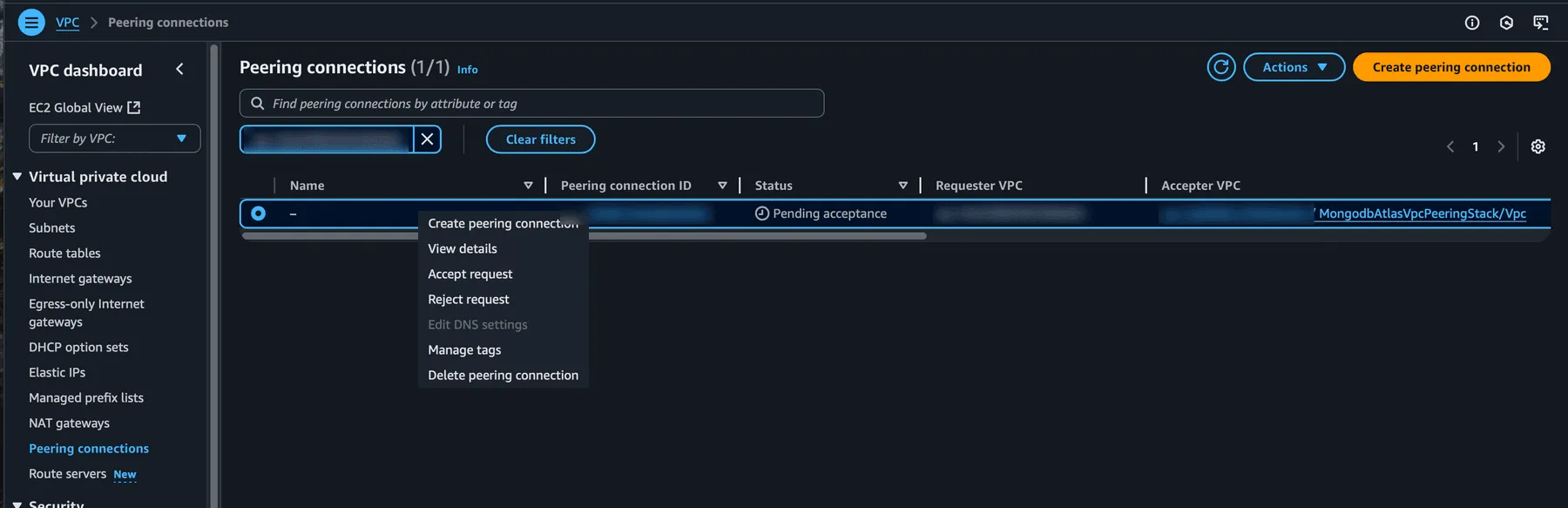
Then check that:
- The peering connection shows as “Available” in the MongoDB Atlas console.
- It’s active in the AWS VPC console.
- Your route tables have routes to the Atlas CIDR.
- You can connect to the database from an EC2 instance in your VPC.
Step 7: Test the MongoDB connection
First, create the Lambda function dependencies. Add to your package.json:
{
  "dependencies": {
    "mongodb": "^6.0.0",
    "@aws-sdk/client-secrets-manager": "^3.0.0"
  }
}
Then create the Lambda function at lambda/connectivity-test.ts:
const { MongoClient } = require('mongodb');
const { SecretsManagerClient, GetSecretValueCommand } = require('@aws-sdk/client-secrets-manager');

exports.handler = async () => {
  const hostName = process.env.MONGODB_HOST_NAME;
  const dbName = process.env.MONGODB_DB_NAME;
  const secretArn = process.env.MONGODB_SECRET_ARN;

  if (!hostName || !dbName || !secretArn) {
    return {
      statusCode: 400,
      body: JSON.stringify({
        success: false,
        message: 'MongoDB configuration not provided (missing MONGODB_HOST_NAME, MONGODB_DB_NAME, or MONGODB_SECRET_ARN)'
      })
    };
  }

  let client;
  try {
    console.log('Retrieving MongoDB credentials from Secrets Manager...');

    // Get credentials from Secrets Manager
    const secretsClient = new SecretsManagerClient({ region: process.env.AWS_REGION });
    const secretCommand = new GetSecretValueCommand({ SecretId: secretArn });
    const secretResponse = await secretsClient.send(secretCommand);

    if (!secretResponse.SecretString) {
      throw new Error('Secret value is empty');
    }

    const secretData = JSON.parse(secretResponse.SecretString);
    const username = secretData.username;
    const password = secretData.password;

    if (!username || !password) {
      throw new Error('Username or password not found in secret');
    }

    // Construct the MongoDB connection string
    const connectionString = `mongodb+srv://${encodeURIComponent(username)}:${encodeURIComponent(password)}@${hostName}/${dbName}?retryWrites=true&w=majority`;

    console.log('Attempting to connect to MongoDB Atlas...');
    console.log('Hostname:', hostName);
    console.log('Database:', dbName);

    client = new MongoClient(connectionString);
    await client.connect();

    // Test the connection
    const admin = client.db('admin');
    const result = await admin.command({ ping: 1 });

    // Additional connectivity tests
    const testDb = client.db(dbName);
    const collections = await testDb.listCollections().toArray();

    console.log('Successfully connected to MongoDB Atlas');

    return {
      statusCode: 200,
      body: JSON.stringify({
        success: true,
        message: 'Successfully connected to MongoDB Atlas',
        ping: result,
        database: dbName,
        collectionsCount: collections.length,
        collections: collections.map((c: any) => c.name),
        timestamp: new Date().toISOString(),
        vpcInfo: {
          availabilityZone: process.env.AWS_REGION,
          functionName: process.env.AWS_LAMBDA_FUNCTION_NAME
        }
      })
    };
  } catch (error: any) {
    console.error('Failed to connect to MongoDB Atlas:', error);
    return {
      statusCode: 500,
      body: JSON.stringify({
        success: false,
        message: 'Failed to connect to MongoDB Atlas',
        error: error.message,
        errorCode: error.code,
        timestamp: new Date().toISOString(),
        vpcInfo: {
          availabilityZone: process.env.AWS_REGION,
          functionName: process.env.AWS_LAMBDA_FUNCTION_NAME
        }
      })
    };
  } finally {
    if (client) {
      await client.close();
    }
  }
};
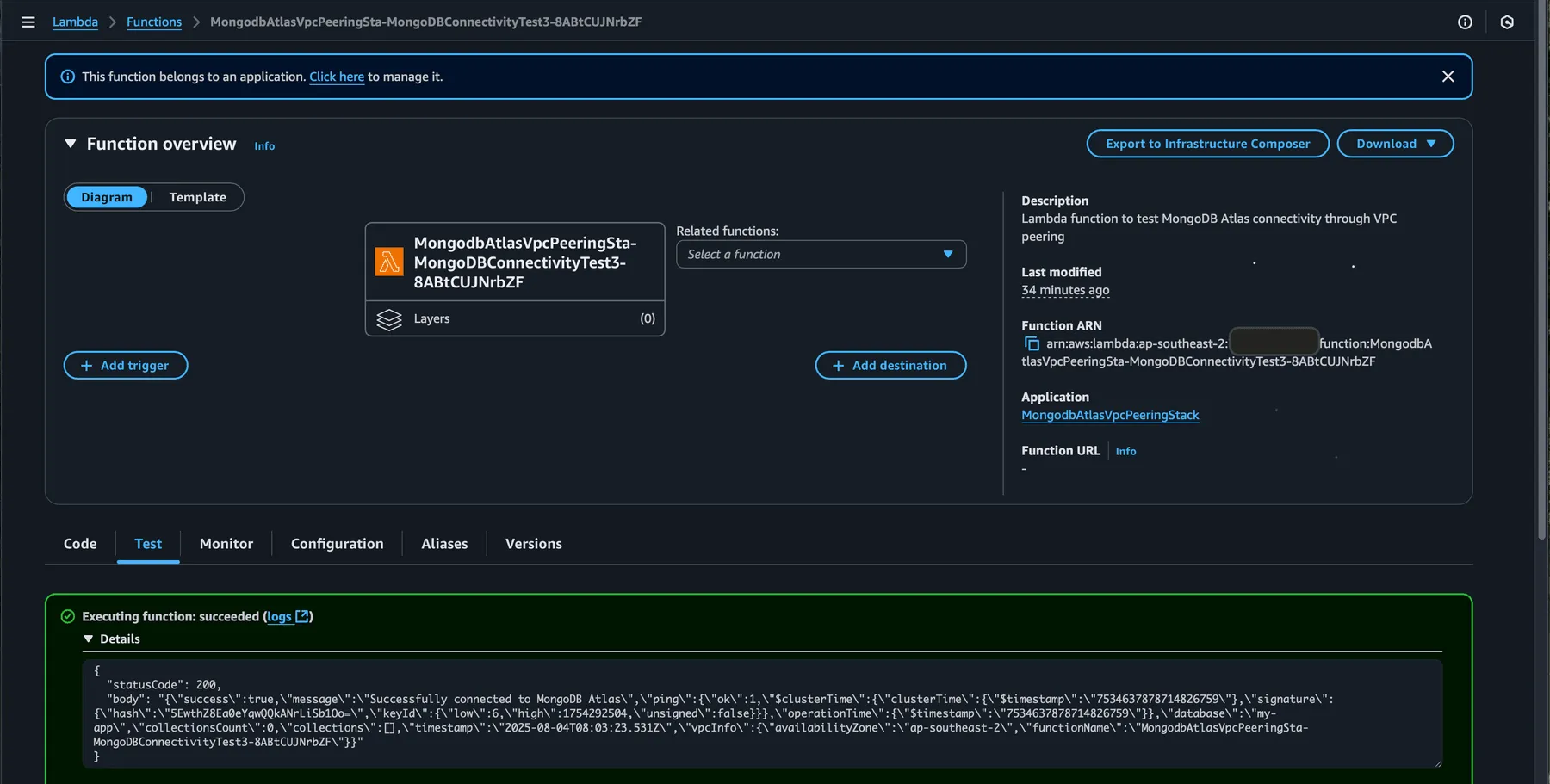
Invoke the function to check the connection:
Keeping costs down
- Start with an M10 cluster and scale based on actual usage.
- Turn on compute and storage auto-scaling.
- Watch data transfer, because peering is billed per GB.
- Balance backup retention against storage costs.
Security
- Allow your VPC CIDR blocks in the IP access list, never 0.0.0.0/0.
- Rotate the database password regularly with AWS Secrets Manager.
- Connect to the database from private subnets.
- Turn on MongoDB Atlas logging and AWS CloudTrail.
- Encrypt data in transit and at rest.
Troubleshooting
Peering connection stuck in “Pending”
- Verify AWS account ID and VPC ID are correct
- Check that CIDR blocks don’t overlap
- Check that Atlas has the IAM permissions it needs
Can’t connect to the database
- Verify security groups allow MongoDB traffic (port 27017)
- Check route table configurations
- Confirm IP access list includes VPC CIDR
High data transfer costs
- Review application connection patterns
- Implement connection pooling
- Consider data locality and read preferences
Cleanup
When you’re done, destroy the stack so it stops costing money:
cdk destroyThis deletes the MongoDB Atlas cluster and all its data, so back up anything you need first, especially in production.
Wrapping up
Peering can cost 60-80% less than VPC endpoints. Traffic stays on a private network, the direct connection often performs better, and the whole setup lives in code.
The construct is reusable: change its parameters to deploy it to development, staging and production. For production, add monitoring, alerting and backups on top.
The full code is on GitHub: https://github.com/phanluanint/mongodb-atlas-vpc-peering